Meta Ads Manager's native bulk editor accepts an XLSX template that lets you create or edit campaigns, ad sets, and ads by filling in a spreadsheet and importing it. You access it under Ads Manager > Import & Export. The feature is free, ships with every ad account, and is the same XLSX format Meta uses internally for its export/re-import workflow.
This is the reference guide to that template. Every column, every required vs optional field, the image hash and zip-upload mechanics, the row-level error messages and what they actually mean, and the export → clear IDs → re-import pattern for moving campaigns between accounts.
Third-party bulk launchers that publish via the Marketing API instead of XLSX are a separate decision with its own comparison. This guide stays on the native spreadsheet workflow.
What is the Native Bulk Editor?
The native bulk editor is Meta Ads Manager's built-in Import & Export feature. It accepts an XLSX template (CSV also works for simpler files) containing one row per object - one row per campaign, ad set, and ad - and creates or updates everything in that file in a single transaction.
It sits at Ads Manager > Import & Export > Import Ads, and it's available on every ad account at no cost. Originally part of Facebook's Power Editor - the desktop-only tool legacy advertisers used through the mid-2010s - the bulk editor was folded into Ads Manager when Power Editor was retired, which is why some teams still refer to the XLSX as the "Power Editor template."
It handles both creation (rows with blank ID columns) and updates (rows with the original Campaign / Ad Set / Ad IDs intact). The same file can mix the two: blank IDs create, filled IDs update, and Meta processes the file row by row.
How Does Facebook Ads Bulk Upload Work?
The bulk upload process works through structured spreadsheets that communicate ad data to Facebook's system. Here's how it functions:
1. Spreadsheet Template
First, you fill out a template Excel sheet with columns for campaigns, ad sets, and ads. Each row represents one object with all its details. Facebook provides templates with the correct column names, which differ slightly from the UI (for example, "Body" for ad text, "Title" for headline).
2. Importing the File
In Ads Manager, click the Import/Export button and choose "Import Ads in Bulk." You can either upload your Excel/CSV file or paste the data as text. The system parses the spreadsheet and creates or updates the specified campaigns, ad sets, and ads.
3. Uploading Creatives
For images and videos, you have two options:
- Reference existing assets using their Image Hash or Video ID
- Upload new assets alongside the spreadsheet, either individually or as a zip file
The key is matching file names in your spreadsheet to the actual files you upload.
4. Processing and Validation
Facebook processes the data and shows a summary of what was imported, including any warnings or errors. Minor issues appear as warnings, while serious problems become blocking errors that prevent import.
5. Review and Publish
After successful import, campaigns appear in Ads Manager as drafts. You can review everything before clicking "Publish" to make the ads live.
The file size limit is approximately 2 MB, which typically allows for several hundred ads per import.
The Bulk Upload Template: Every Column Explained
The XLSX column names differ from the Ads Manager UI labels in ways that trip up new users. "Body" is primary text. "Title" is the headline. "Description" is the link description, not the ad description. The full reference:
Campaign-level columns
| Column | Meaning | Format |
|---|---|---|
| Campaign ID | Existing campaign ID for updates | Leave blank to create new |
| Campaign Name | Campaign label | Free text |
| Campaign Objective | Buying objective | OUTCOME_SALES, OUTCOME_TRAFFIC, OUTCOME_LEADS, OUTCOME_AWARENESS, OUTCOME_ENGAGEMENT, OUTCOME_APP_PROMOTION |
| Campaign Status | Campaign on/off | ACTIVE or PAUSED |
| Buying Type | Auction or reserved | AUCTION (default) or RESERVED |
| Campaign Daily Budget | Daily budget at campaign level | Whole-number minor units, no currency symbol (e.g. 5000 for $50.00) |
| Campaign Lifetime Budget | Lifetime budget at campaign level | Same format as daily |
| Campaign Bid Strategy | Optimization strategy | LOWEST_COST_WITHOUT_CAP, LOWEST_COST_WITH_BID_CAP, COST_CAP |
| Special Ad Categories | Restricted categories | CREDIT, EMPLOYMENT, HOUSING, ISSUES_ELECTIONS_POLITICS, or blank |
Ad-set-level columns
| Column | Meaning | Format |
|---|---|---|
| Ad Set ID | Existing ad set ID for updates | Leave blank to create new |
| Ad Set Name | Ad set label | Free text |
| Ad Set Daily Budget | Daily budget at ad set level | Whole-number minor units |
| Ad Set Lifetime Budget | Lifetime budget at ad set level | Whole-number minor units |
| Ad Set Run Status | Ad set on/off | ACTIVE or PAUSED |
| Start Time | Schedule start | ISO 8601 (e.g. 2026-06-01T00:00:00+0000) |
| End Time | Schedule end | ISO 8601 |
| Optimization Goal | What Meta optimizes for | OFFSITE_CONVERSIONS, LINK_CLICKS, REACH, IMPRESSIONS, THRUPLAY, etc. |
| Billing Event | When you get charged | IMPRESSIONS, LINK_CLICKS, THRUPLAY |
| Bid Amount | Bid for capped strategies | Minor units, blank for lowest-cost |
| Pixel ID | Conversion pixel | Required for OFFSITE_CONVERSIONS |
| Conversion Event | Pixel event optimized for | PURCHASE, LEAD, COMPLETE_REGISTRATION, etc. |
| Conversion Window | Attribution window | 1d_view, 7d_click, 1d_click_1d_view, etc. |
| Countries | Geo targeting | ISO-3166-1 alpha-2 codes, comma-separated (e.g. US, CA, GB) |
| Cities | City targeting | Free text with country (e.g. New York, New York, US) |
| Age Min / Age Max | Age range | Integers 13-65 |
| Gender | Gender targeting | All, Men, Women |
| Locales | Language targeting | Numeric Meta locale IDs |
| Interests | Detailed targeting | Comma-separated interest IDs |
| Custom Audiences | Included audiences | Comma-separated audience IDs |
| Excluded Custom Audiences | Excluded audiences | Comma-separated audience IDs |
| Placements | Where ads run | Comma-separated (e.g. facebook_feed, instagram_feed, facebook_reels, instagram_stories) |
| Device Platforms | Device targeting | mobile, desktop, or both |
Ad-level columns
| Column | Meaning | Format |
|---|---|---|
| Ad ID | Existing ad ID for updates | Leave blank to create new |
| Ad Name | Ad label | Free text |
| Ad Status | Ad on/off | ACTIVE or PAUSED |
| Title | Headline text | One headline per row, or multiple for DCO |
| Body | Primary text | The main copy above the creative |
| Link | Destination URL | Full URL with https:// |
| Display Link | Shortened display URL | Optional vanity URL |
| Caption | URL caption | Optional small text beneath headline |
| Description | Link description | Optional secondary text |
| Call to Action | CTA button | SHOP_NOW, LEARN_MORE, SIGN_UP, GET_OFFER, etc. |
| Image Hash | Library image reference | 32-char hex hash |
| Video ID | Library video reference | Numeric Meta video ID |
| Image File Name | New image upload reference | Must match a filename in the upload bundle |
| Thumbnail URL | Video thumbnail override | Full URL |
| URL Tags | Append to destination URL | utm_source=facebook&utm_medium=cpc-style strings |
| Tracking Pixel IDs | Conversion tracking | Pixel IDs that should fire for this ad |
| Instagram Account ID | IG identity | Required for IG placements |
| Page ID | Facebook Page identity | Required for all Meta ads |
For Dynamic Creative ads, the template adds repeating variant columns: Additional Headline 1-5, Additional Body 1-5, Additional Image 1-5. The maximum count for each varies by placement and objective.
Required columns shift based on objective. The cleanest workflow is to manually create one minimal ad in your target objective, export it as a starting template, and use that exported file as your baseline - every required column will already be populated with the correct format.
What the XLSX Workflow Is Good At (and What It Isn't)
The native XLSX bulk editor is purpose-built for a few specific jobs and clumsy at others. Knowing the difference saves hours of fighting the template.
Strong fits:
- Bulk edits across many ads - updating destination URLs, UTM tags, ad copy, or budgets across hundreds of rows by editing one column.
- Templated campaign rebuilds - replicating a known-good structure for a new market or client.
- Cross-account transfer - exporting from one account, clearing IDs, and re-importing elsewhere.
- Offline review and version control - sharing a campaign plan via XLSX, tracking diffs, getting sign-off before publish.
Awkward fits:
- Newer ad formats - some Advantage+, Catalog DCO, and newer placement variants aren't fully expressible in the XLSX schema; Meta's UI is the only complete source.
- High-velocity testing - the copy-paste-between-sheet-and-Ads-Manager loop adds friction once you're launching more than ~20 ads per week.
- Per-creative thumbnail control - you can set a thumbnail URL, but you can't preview frames or pick from generated options the way the UI does.
- Post ID engagement preservation - new posts are created on import, so likes and comments don't carry across.
For everything in the "Strong fits" column, the native XLSX is the right tool and there's no reason to look further.
Step-by-Step Guide to Bulk Upload
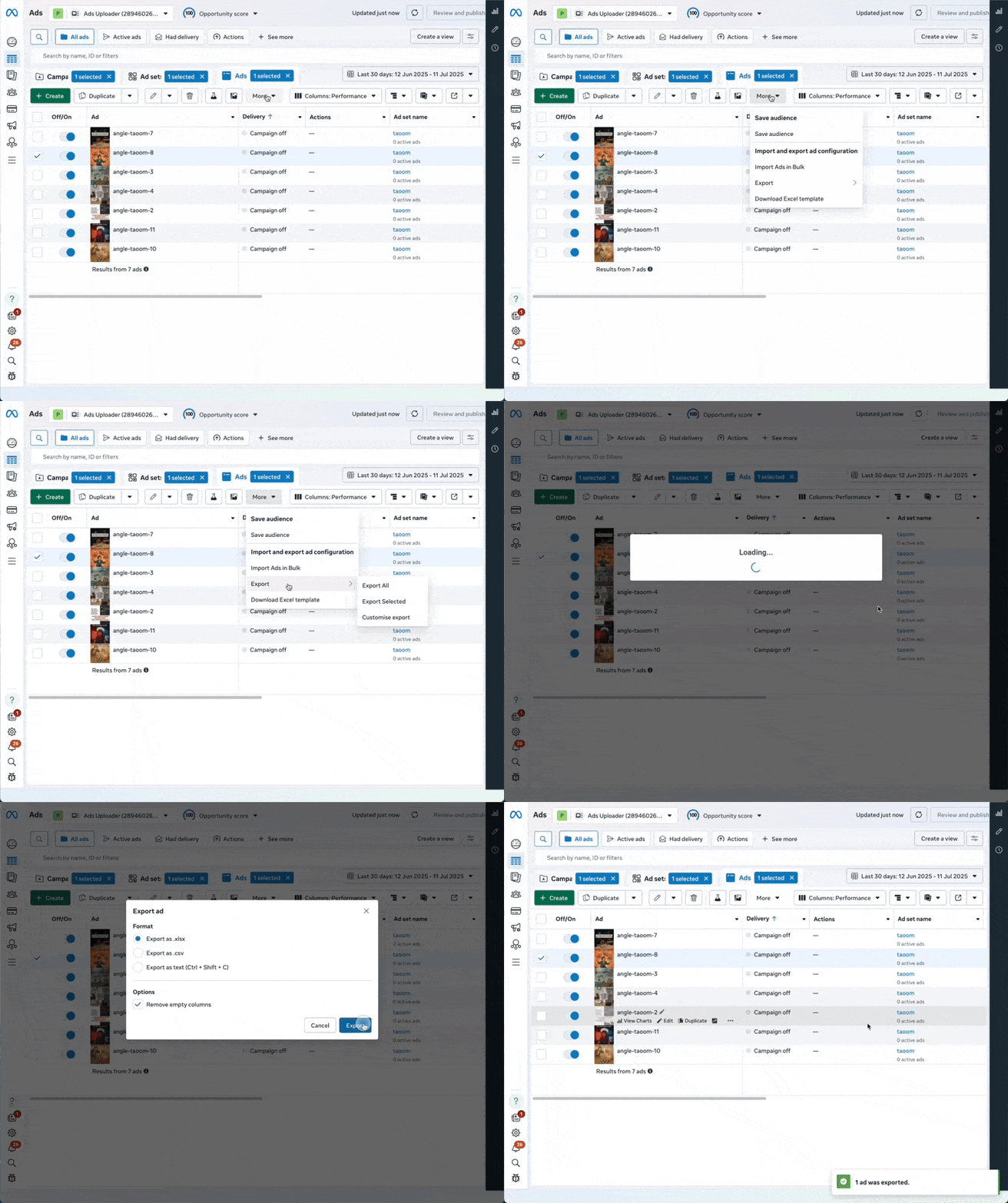
Step 1: Download the Template
Navigate to Ads Manager and click Import/Export. Choose "Download Template" for new campaigns or "Export" to modify existing ones.
Step 2: Fill in Your Data
Open the Excel file and input your campaign, ad set, and ad details. Key points:
- Leave ID fields blank for new items
- Include IDs when editing existing items
- Ensure all required fields are complete
- Match image file names exactly
Launch More. Click Less.
Upload hundreds of creatives at once, auto-match thumbnails to videos, and export directly to Meta Ads Manager.
Try Ads Uploader FreeNo credit card required • 7-day free trial
Step 3: Import to Ads Manager
Click Import/Export again and select "Import Ads in Bulk." Upload your file and any new creative assets.
Step 4: Review Import Summary
Check for successes, warnings, and errors. Fix any issues in your spreadsheet and re-import if needed.
Step 5: Publish Changes
Review draft items in Ads Manager and click "Publish" to make them live.
Pro Tip: Start with a small test batch to ensure your format is correct before scaling up to hundreds of ads.
Image Hashes, Video IDs, and the Zip Workflow
Creatives are the most failure-prone part of XLSX imports because there are three ways to attach media to a row and they don't behave the same way.
Three ways to attach a creative
1. Image Hash (existing library asset). Every image you've ever uploaded to a Meta ad account gets a 32-character hex hash. Drop that into the Image Hash column and the row points at the existing asset - no re-upload, no zip file. Find a hash by manually creating one ad with the image, exporting that ad as XLSX, and copying the hash from the export. The Marketing API exposes hashes directly via /act_{account_id}/adimages, but pulling them through the UI is the no-code route.
2. Video ID (existing library asset). Same idea for video. The Video ID is a long numeric string Meta assigns when you upload to the account's video library. Reference it in the Video ID column and you skip re-uploading.
3. Filename match (new asset upload). Put a filename (e.g. summer_promo_4x5.jpg) in the Image File Name column. When you click Import Ads in Bulk, Meta prompts you to attach either the loose files or a single zip archive containing all referenced filenames. Filenames must match character-for-character, extension included, case-sensitive.
Common silent failures
- Trailing whitespace in the Image File Name cell - Excel preserves invisible spaces that break the match. Trim cells before saving.
- Mac archive metadata - zipping on macOS adds
__MACOSX/and.DS_Storeentries. Meta usually ignores these, but some zip tools include resource forks (._filename.jpg) that look like filenames to the matcher. Usezip -Xfrom the terminal, or strip metadata before uploading. - Mismatched case -
Summer_promo.jpgin the spreadsheet vssummer_promo.jpgon disk silently fails. Standardize on lowercase. - Mixed references in one row - filling both Image Hash and Image File Name on the same row produces undefined behavior. Pick one per row.
Hard errors
- File total exceeds 2 MB XLSX cap → split the import.
- Filename referenced but not uploaded → row blocked until resolved.
- Image Hash from a different ad account → blocked, hashes are account-scoped.
- Video ID still processing → row blocked with a "video not ready" error.
For repeated batches with the same assets, paste hashes and IDs rather than re-uploading. It avoids the 2 MB cap and removes a whole class of filename errors.
Reading the Import Summary: Errors vs Warnings
After upload, Meta shows a per-row summary. Two outcomes matter:
Warnings let the import proceed. Common ones:
- "Placement not available for selected objective" - Meta will publish the ad but skip the unsupported placement. Often safe to ignore, but worth checking that the placement you wanted didn't quietly get dropped.
- "Bid amount unusually low" - informational only, the bid is accepted as-is.
- "Field will be ignored for this objective" - you filled in a column that doesn't apply (e.g. Conversion Event on a TRAFFIC campaign). Harmless.
Errors block the import. Common ones and the row-level fix:
- "Invalid combination of objective and optimization goal" - your Optimization Goal column doesn't match the Campaign Objective. Re-export one valid ad set with the target objective to see which optimization goals Meta accepts.
- "Pixel not found" - the Pixel ID in the row doesn't belong to this ad account, or the account doesn't have the right asset permission. Confirm the pixel is shared with the account in Business Settings.
- "Image hash not found" - hash from a different account, or the asset was deleted. Either re-upload via Image File Name, or copy the hash from a new export of the source account.
- "Filename not provided" - Image File Name references a file that wasn't included in the attached zip or loose uploads.
- "Cannot update fields on existing object" - you're trying to change an immutable field (e.g. Campaign Objective on an existing campaign). Clear the ID columns to create a new campaign instead, or revert that cell to its original value.
- "Ad set conflicts with campaign budget optimization" - the campaign uses CBO so Ad Set Daily Budget / Lifetime Budget must be blank. Clear those columns on conflicting rows.
- "Special Ad Category restricted targeting" - credit/employment/housing campaigns disallow age, gender, and detailed targeting fields. Strip those columns for those rows.
Re-import after fixing; warnings carry over from the previous attempt only for unchanged rows.
Cross-Account Campaign Transfer via Export → Re-Import
Meta has no "copy campaign to another ad account" button. The XLSX export → clear IDs → re-import pattern is the official workaround.
Step-by-step
- Export the source campaign. Ads Manager > select campaign > Import & Export > Export Selected.
- Open the file and clear all ID columns. Delete every value in Campaign ID, Ad Set ID, and Ad ID. Leave the column headers intact. Filled IDs would try to update, not create.
- Swap account-specific identifiers. These do not travel between accounts:
- Page ID - replace with the destination account's Facebook Page ID.
- Pixel ID - replace with the destination account's pixel (or share the source pixel via Business Settings if you want shared attribution).
- Instagram Account ID - replace with the destination account's IG identity.
- Custom Audience IDs - replace with destination-account audiences. Custom Audiences don't transfer unless shared via Business Manager asset sharing.
- Catalog ID - replace if using DPA / Advantage+ Catalog.
- Swap or clear placement targeting if the destination account doesn't have access to the same placements.
- Import into the destination account. Switch ad accounts in Ads Manager first, then Import Ads in Bulk.
- Re-upload or re-reference creatives. Image hashes and Video IDs are account-scoped. Either upload the files fresh, or copy them across via Meta's Media Library.
- Review the draft and publish.
Save Hours on Creative Testing
Stop uploading ads one by one. Bulk process unlimited creatives with automatic media matching and direct API publishing.
Try Ads Uploader FreeNo credit card required • 7-day free trial
What doesn't travel
- Learning phase data - the new campaign restarts learning from zero.
- Post engagement - likes, comments, and shares stay attached to the source post; the imported ads create new posts.
- Historical performance - Insights for the source campaign stay in the source account.
- Account-level optimization signals - the destination account's pixel only has the conversion history it has accumulated independently.
The transfer pattern is reliable enough to be the recommended workflow for white-label agency offboarding. See our white-label Facebook ads guide for the broader handover playbook.
Common Mistakes to Avoid
Mixing Create vs Update
Blank IDs create, filled IDs update. Mixing them in one file is fine - but accidentally leaving an ID in a row you intended to duplicate will overwrite the original ad instead.
Wrong Column Formats
Required columns shift by objective. Always export a working ad in the target objective and use that as your baseline.
Mismatched File Names
Case, underscores, extensions, and trailing whitespace all matter. Standardize on lowercase, no spaces, and trim cells before saving.
Ignoring Error Messages
Errors are row-level and explicit. Read the row number and column, fix that cell, re-import.
Exceeding File Size
The 2 MB XLSX limit hits surprisingly fast on Dynamic Creative campaigns with many variant columns. Split into smaller batches.
Attempting to Edit Immutable Fields
Campaign Objective, Buying Type, and a few other fields are immutable once set. The import will block the row. Create a new campaign with the new value instead.
When the XLSX Workflow Stops Scaling
The XLSX route is excellent up to roughly 20 ads per week. Above that, you'll spend more time copy-pasting between the sheet and Ads Manager than the format saves - Image Hash lookups, error iterations, filename matching, and the 2 MB cap all start to dominate. Teams launching at higher volume typically move to a Marketing API-based bulk launcher that skips the XLSX step entirely. The trade-off comparison lives in our 11 best bulk ad launchers guide; this guide stays on the native template.
Frequently Asked Questions
Is Facebook bulk upload free to use?
Yes. Meta Ads Manager's native bulk upload (Import & Export) is free for every advertiser. It's the same XLSX template Meta uses internally.
How many ads can I upload at once?
The practical limit is several hundred ads per file because of the 2 MB file size cap. For larger volumes, split your work across multiple imports.
What's the exact column name for ad primary text in the XLSX template?
Body. The template uses Body for primary text, Title for headline, Caption for the URL caption, and Description for the link description. The column names differ from the labels you see in the Ads Manager UI, so always check the exported template, not the in-app field labels.
Why does my XLSX import keep failing on filename mismatch?
The Image File Name column has to match the uploaded filename character-for-character, including extension and case. A single underscore, a trailing space, or a capital letter difference will silently break the link between your spreadsheet row and the asset. Either upload assets in a zip with the exact names referenced, or paste the Image Hash / Video ID instead of using filenames.
Do I need a different XLSX template for conversion vs traffic campaigns?
You use the same template, but the required columns differ by objective. Conversion campaigns need Pixel ID, Conversion Event, and Conversion Window columns filled in. Traffic and engagement objectives can leave those blank. The cleanest workflow is to first create one ad set manually in the chosen objective, then export it as your starting template so all required columns are pre-populated.
Can I edit existing ads with bulk upload?
Yes. Export the ads you want to change, edit the cells in the spreadsheet, leave the Ad ID / Ad Set ID / Campaign ID values intact, and re-import. Filled IDs tell Meta to update; blank IDs tell Meta to create.
Can I keep my Post ID engagement when re-importing an ad?
No. The native XLSX workflow creates a new post for each imported ad, so likes, comments, and shares start at zero. Preserving social proof requires the Page Post ID workflow, which the XLSX template does not expose directly. See our Facebook Post ID guide for the workaround.
Can I bulk upload images and videos?
Yes. You can either reference existing library assets by their Image Hash or Video ID, or upload new files alongside the XLSX. New files are uploaded individually or as a single zip archive with filenames matching the Image File Name column in your spreadsheet.
Can I duplicate campaigns across different ad accounts?
Yes. Export from the source account, clear all ID columns, swap account-specific values (Page ID, Pixel ID, Custom Audience IDs, Instagram Account ID), then import into the destination account. Performance history and post engagement do not travel with the copy.
What if I encounter errors during import?
Meta returns row-level error messages with the offending column. Fix the cells the summary calls out, save the XLSX, and re-import. Warnings let the import proceed; errors block it until resolved.
Conclusion
The native XLSX bulk editor is the right tool for templated rebuilds, mass edits, cross-account transfers, and any workflow where offline review and version control matter. The column glossary, image-hash mechanics, and error-summary patterns above are the reference you'll come back to whenever the template behaves unexpectedly.
If your weekly launch volume has outgrown the spreadsheet workflow, the comparison of Marketing-API bulk launchers lives in a separate guide. Otherwise the native bulk editor remains free, Meta-supported, and fully sufficient for everything it was designed to do.
