A Facebook Post ID is a unique 15-17 digit numerical identifier assigned to every post, ad, photo, or video published on Facebook. You can find it by examining the post's URL (right-click > Copy Link), viewing page source code, or using Meta's Graph API Explorer. Media buyers use post IDs to duplicate ads while preserving engagement, when you scale a winning ad using its post ID, the new ad retains all likes, comments, and shares from the original, maintaining social proof that improves performance.
You've found a winning ad with 2,000 likes and 300 comments. When you duplicate it to scale across new audiences, all that engagement disappears. The new ads start from zero. No social proof. No credibility signals. Just blank ads that perform 20% worse than the original.
This happens because most advertisers duplicate the wrong way. Standard duplication in Ads Manager creates a brand new post, losing all engagement. Post ID duplication uses the existing post, keeping every like, comment, and share intact across all instances.
After scaling hundreds of campaigns, post ID duplication is the method I use to preserve social proof when testing winning ads across new audiences. In this guide, you'll learn exactly how to find Facebook post IDs using four different methods, and more importantly, how to use them strategically to scale campaigns without losing performance.
What Is a Facebook Post ID?
Definition and Structure
A Facebook post ID is a permanent, unique numerical identifier assigned to every piece of content published on Facebook. Whether it's an organic post, paid ad, photo, video, or carousel, Meta's system generates a 15-17 digit Facebook post ID the moment you publish.
The format looks like this: 12345678901234567
The Facebook post ID itself is permanent and doesn't change. This makes it valuable for tracking, reporting, and most importantly for advertisers, ad duplication.
Why Post IDs Matter for Advertisers
Administrative uses: Direct linking to specific posts, tracking content performance across platforms, API operations for bulk management, embedding posts on external websites.
Strategic advertising use: Preserving social proof when scaling ads. This is the critical difference between mediocre campaigns and high-performing ones.
When you create a new ad using an existing post ID, every ad instance shows the same engagement count. If your original ad has 2,000 likes, 300 comments, and 150 shares, every new ad set using that post ID displays the same numbers. That social proof influences performance, ads with existing engagement convert 15-25% better than identical ads starting from zero.
Performance Impact of Social Proof
Social proof works because it reduces perceived risk. When someone sees an ad with thousands of likes and hundreds of comments, their brain interprets this as validation from other customers. The product must work if this many people engaged with it.
The effect compounds. Higher engagement rates signal to Meta's algorithm that the ad resonates, leading to better delivery and lower costs. You're not just preserving vanity metrics, you're maintaining actual performance advantages.
When You Need a Facebook Post ID
For Regular Facebook Users
Most people encounter Facebook post IDs when reporting content (Meta requires the Facebook post ID for content moderation), sharing specific posts via third-party tools, embedding Facebook posts on websites, or tracking content for analytics.
For Meta Advertisers (Primary Use Case)
This is where post IDs become strategic tools rather than administrative data.
Duplicating ads while preserving engagement: The primary reason media buyers need Facebook post IDs. When scaling a winner to new ad sets, audiences, or campaigns, using the Facebook post ID maintains all social proof.
Scaling winning ads efficiently: Instead of manually recreating the ad creative and starting engagement from zero, paste the post ID and you're done. The new ad carries all the performance signals of the original.
Testing different audiences with the same creative: Want to test broad targeting vs interest targeting with identical creative? Use the same post ID in both ad sets. Now you're testing targeting variables in isolation without creative differences muddying the data.
API-based bulk operations: If you're using Meta's API or tools that integrate with it, post IDs are required for programmatic ad creation at scale.
Performance tracking and attribution: Post IDs provide a consistent identifier for tracking creative performance across multiple campaigns and ad accounts.
Method 1: Find Post ID from URL (Easiest and Fastest)
This is the method you'll use 90% of the time. It takes 15 seconds and works for both organic posts and ads.
For Regular Facebook Posts
- Navigate to the post on Facebook
- Click the timestamp (the date/time in the top right of the post) or click the three-dot menu and select "Copy link"
- The URL copies to your clipboard
- Paste it into a text editor to view
- Look for the long number after
posts/orvideos/in the URL
Example URL: facebook.com/PageName/posts/12345678901234567
The number 12345678901234567 is your Facebook post ID.
Alternative URL format: Sometimes the URL includes additional parameters: facebook.com/PageName/posts/12345678901234567? ref=share
Ignore everything after the question mark. The 15-17 digit number is what you need.
For Facebook Ads
Finding Facebook post IDs for existing ads requires one extra step since ads live in Ads Manager, not on a public page (unless the ad is also published organically).
- Open Meta Ads Manager
- Navigate to your campaign, then ad set, then select the specific ad
- In the ad preview pane (right side of screen), click "View post on Facebook" or the Facebook icon
- This opens the actual Facebook post in a new tab
- Copy the URL from your browser's address bar
- Extract the Facebook post ID from the URL using the same method above
Pro tip: If "View post on Facebook" isn't visible, the ad likely uses dynamic creative or multiple posts (carousel variations with different Facebook post IDs). In that case, you'll need to use Method 2 or 3.
Common URL Variations
Facebook uses different URL structures depending on post type and how you access it:
- Standard post:
facebook.com/PageName/posts/12345678901234567 - Photo post:
facebook.com/PageName/photos/a.12345678901234567 - Video post:
facebook.com/PageName/videos/12345678901234567 - Permalink format:
facebook.com/permalink.php? story_fbid=12345678901234567&id=98765432109876
In the permalink format, story_fbid is the Facebook post ID.
This URL method works identically on mobile browsers and the Facebook mobile app. The interface looks different, but the process is the same: tap three dots, copy link, view the URL.
Method 2: Find Post ID in Meta Ads Manager (For Advertisers)
This method is fastest when you're already working in Ads Manager and don't want to leave the interface. It's particularly useful for ads that may not be published organically on your page.
Quick Ads Manager Method (Easiest for Media Buyers)
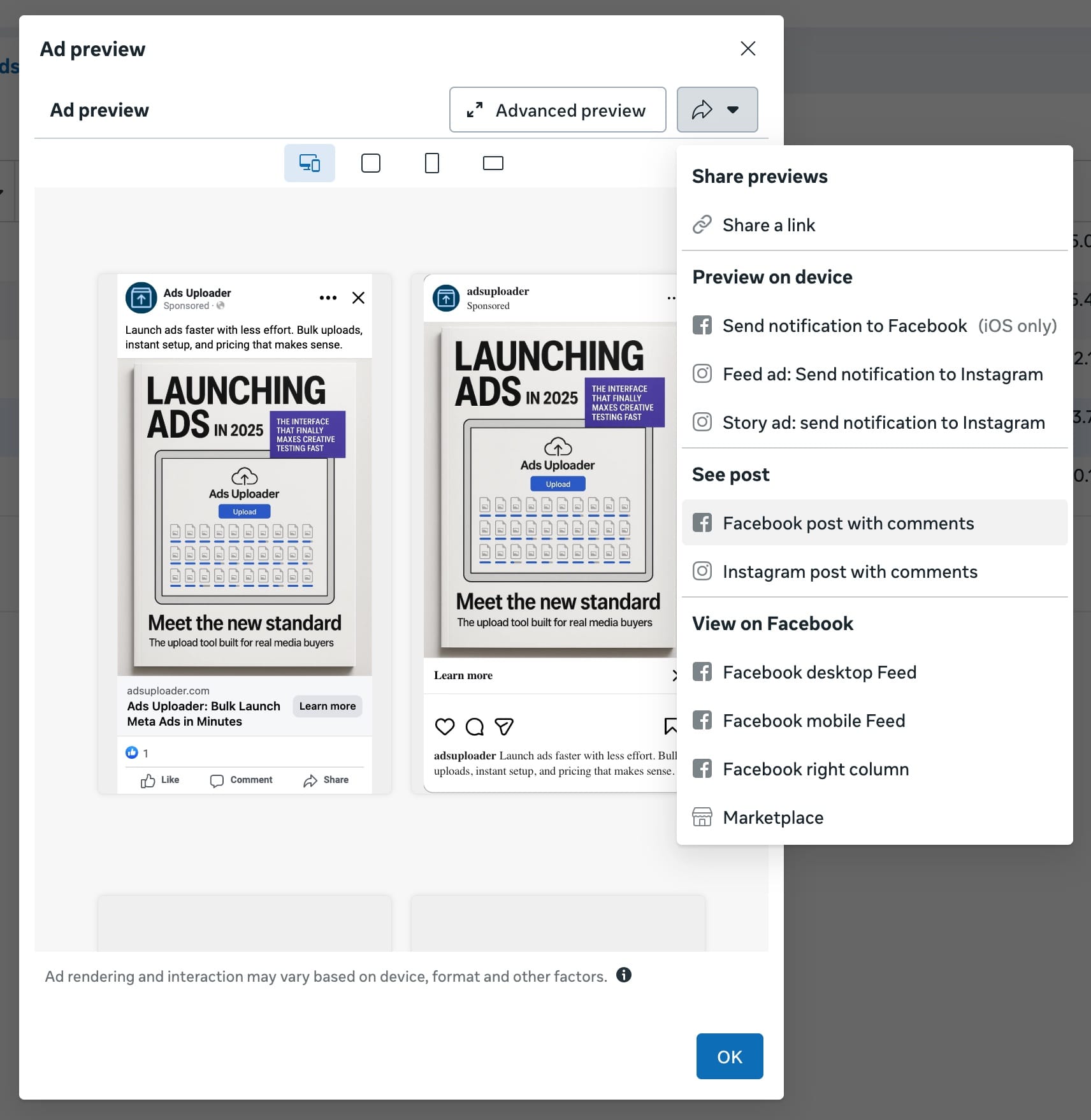
This is the fastest method when you're already in Ads Manager managing campaigns. No browser inspection needed.
- Open Meta Ads Manager
- Navigate to Campaign > Ad Set > Specific Ad
- Click the "Preview Creative" button in the ad details
- In the ad preview modal that opens, click "Post with Comments"
- The Facebook post ID appears in the URL of the preview or in the modal header
- Copy the ID directly
Why this is the easiest: You stay in Ads Manager, no need to switch tabs or inspect code. This works for all ad types including dark posts that aren't published to your page.
Alternative Ads Manager Method (Using Inspect)
If the Preview Creative method doesn't show the post ID clearly:
- Open Meta Ads Manager
- Navigate to the ad
- Right-click the ad preview and select "Inspect"
- Press Ctrl+F (Windows) or Cmd+F (Mac)
- Search for
"post_id" - Copy the numerical value
Limitation: Requires familiarity with browser developer tools.
Method 3: View Page Source (Technical Alternative)
This method works for any Facebook post accessible via a public URL. It's more reliable than the URL method in edge cases where the URL structure is ambiguous or complex.
Launch More. Click Less.
Upload hundreds of creatives at once, auto-match thumbnails to videos, and export directly to Meta Ads Manager.
Try Ads Uploader FreeNo credit card required • 7-day free trial
Desktop Method
- Navigate to the Facebook post in your browser
- Right-click anywhere on the page (not on the post itself, anywhere on the page)
- Select "View Page Source" from the menu
- A new tab opens showing the raw HTML code of the page
- Press Ctrl+F (Windows) or Cmd+F (Mac)
- Search for
post_id - The search highlights all instances of "post_id" in the code
- Look for the pattern
"post_id":"12345678901234567" - Copy the number between the quotes
Example search result:
"post_id":"12345678901234567","page_id":"98765432109876"
The first number (post_id) is what you need. Ignore page_id and other similar fields.
When to Use This Method
URL method fails: Sometimes Facebook's URL structure is confusing, especially with shared posts or embedded content. Page source always contains the post_id field.
Verification: If you're unsure whether you extracted the correct ID from a URL, page source provides confirmation. Both methods should yield identical results.
Automation: If you're building scripts or tools that need to extract post IDs programmatically, parsing page source is more reliable than parsing URL structures that change periodically.
Mobile Limitation
This method requires a desktop browser with developer tools. Mobile browsers can view page source on some platforms (like Chrome for Android), but it's cumbersome. On mobile, stick with Method 1.
Method 4: Facebook Graph API Explorer (Advanced)
This method is for developers, power users managing large volumes of content, or anyone building automation around Facebook data. It's overkill for finding a single post ID, but essential for bulk operations.
Using Graph API Explorer
- Go to Facebook Graph API Explorer
- Log in with your Facebook account (requires developer access)
- In the Application dropdown, select your Meta app or use "Meta App"
- Grant necessary permissions (typically
pages_read_engagementandpages_manage_ads) - In the query field, enter the post URL or construct a Graph API query
- Click "Submit"
- The API returns JSON data including the post ID
Example query: /12345678901234567? fields=id, message, created_time
Example response:
{
 "id": "12345678901234567",
 "message": "Your post text here",
 "created_time": "2025-12-13T10:30:00+0000"
}
The id field is your post ID.
When This Method Makes Sense
Bulk operations: If you need post IDs for hundreds of posts, API queries are far more efficient than manually copying URLs.
Integration with tools: Many marketing automation tools use Meta's API. Understanding this method helps you troubleshoot or build custom integrations.
Access to additional data: Graph API returns comprehensive post data (engagement metrics, creation date, audience, etc.) alongside the ID, useful for analysis.
Developer-Level Use Cases
Building ad automation tools, creating bulk reporting dashboards, syncing Facebook data to external systems, programmatic ad creation based on Facebook post ID performance data.
Getting started with Meta APIs: If this interests you but seems complex, Meta provides extensive documentation at Meta for Developers.
How to Use Post IDs for Ad Duplication
Understanding how to find Facebook post IDs is one thing. Using them strategically to scale campaigns is where the performance advantage happens.
How Post ID Duplication Works

When you create a new ad using an existing Facebook post ID, you're not creating new creative - you're reusing existing creative with all its engagement intact. All ads sharing the same Facebook post ID display the same engagement count.
What this means in practice: If your original ad has 2,000 likes and you create five new ads using its Facebook post ID, all six ads (original plus five new) show 2,000 likes. When someone likes any of those six ads, the count increases to 2,001 across all of them.
The engagement is additive. All interactions with any ad instance using that Facebook post ID contribute to the shared engagement count.
Step-by-Step: Duplicate with Post ID in Ads Manager
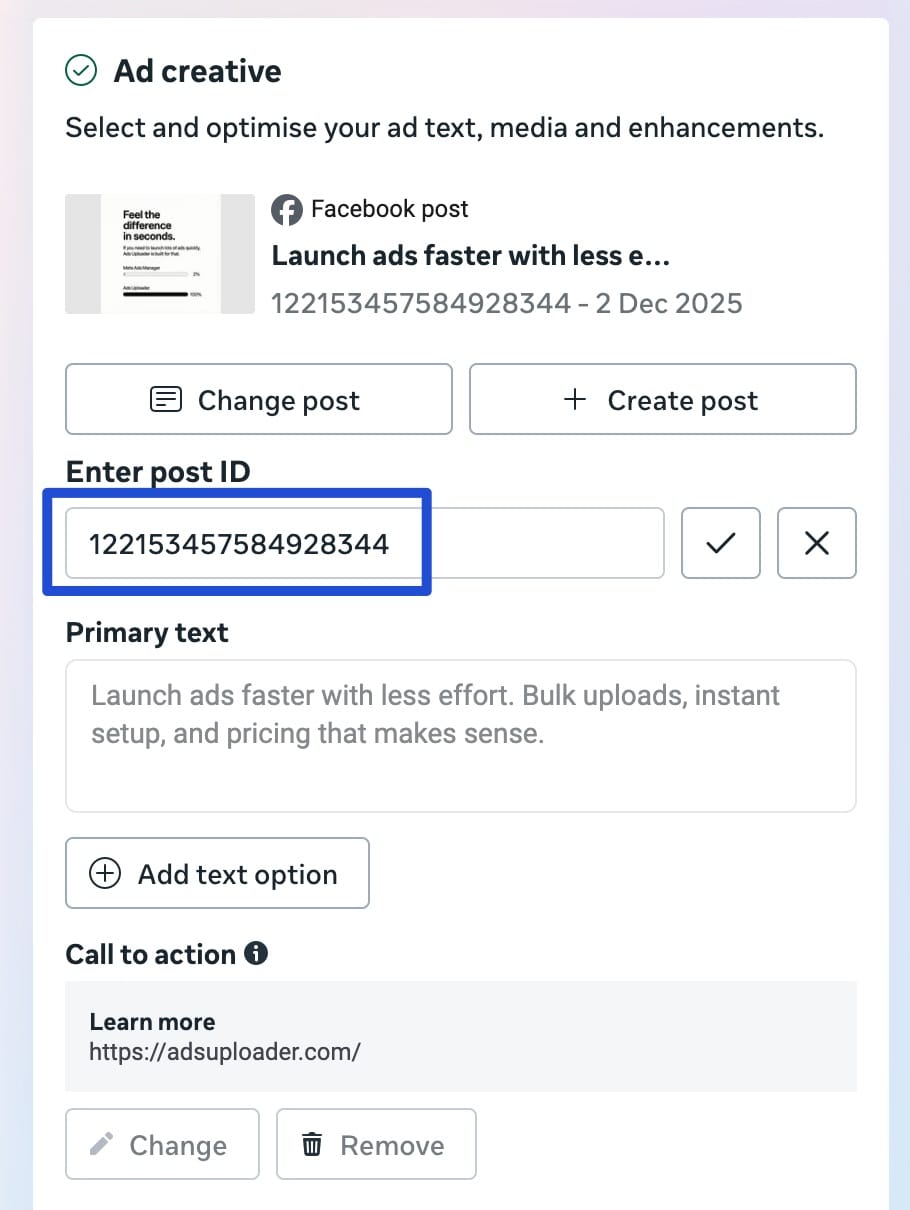
- Get the Facebook post ID using any method above (URL method is fastest)
- Open Ads Manager and navigate to where you want to create the new ad
- Create a new ad in your target ad set (or create a new ad set first if needed)
- In the ad creative section, look for "Ad setup" or "Ad creative"
- Select "Use Existing Post" (not "Create ad" which generates a new post)
- Choose "Enter Post ID" (sometimes labeled "Use Existing Post ID")
- Paste the post ID you copied earlier
- Meta loads the existing post with all its creative and engagement intact
- Configure ad settings (headline, description, call-to-action if needed)
- Review and publish the ad
The new ad now uses the existing post. All engagement is preserved and shared across every ad instance using that Facebook post ID.
When Post ID Duplication Makes Strategic Sense
Moving from testing to scaling campaigns: You have a launch campaign where you test new creatives with broad targeting. A carousel ad starts performing well - $12 CPA with 1,500 likes and 200 comments. Now you want to move it to your scaling campaign that uses TROAS (target ROAS) or cost-per-result bid caps. Use the Facebook post ID to duplicate it. The ad starts in the scaling campaign with all existing engagement intact instead of from zero.
Duplicating across campaign optimization types: Testing showed a winning creative. Now you want to run it in multiple campaigns - one optimized for conversions, one for add-to-cart, one for landing page views. Use the same Facebook post ID across all campaigns. Each optimization type gets the same creative with the same social proof, isolating the optimization variable.
Seasonal campaign launches: You have a Black Friday ad that crushed it last year with massive engagement. Use that Facebook post ID again this year. You start the campaign with last year's social proof already attached.
A/B testing ad copy variations: Create two posts with different headlines or descriptions, run them until one accumulates significant engagement, then scale the winner using its Facebook post ID across multiple ad sets.
Agency client work: When managing multiple campaigns for a client, using Facebook post IDs ensures consistency. All campaigns for a product launch can use the same Facebook post ID, maintaining unified social proof across the entire account.
Limitations and Edge Cases to Know
Flexible ads and dynamic creative: Ads using multiple text variations, multiple images, or different aspect ratios may create separate post IDs for each variation. Standard post ID duplication won't work because there isn't a single post ID to reference.
Creative ID fallback method: For these cases, you can use the creative ID instead of the post ID. When you duplicate using the creative ID, the post gets "forked" - the new ad starts with all existing engagement from the original, but from that point forward, engagement on the two posts tracks separately. New likes on the duplicate don't add to the original's count.
When forking works well: If your main goal is avoiding a blank ad (starting with zero engagement), creative ID forking accomplishes that. The ad launches with existing social proof, even though future engagement diverges.
Limitation: This creative ID method isn't available natively in Ads Manager. Ads Uploader automatically detects when post ID duplication won't work (flexible ads, dynamic creative) and falls back to the creative ID method, preserving the initial engagement fork.
Page post engagement vs ad engagement: Engagement on the organic post (when viewed on your Facebook page) and engagement via paid ads both contribute to the same count. They're the same post, same ID.
Cross-account limitations: You can use the same post ID in multiple ad accounts, but only if those accounts all have admin access to the same Facebook Page. You cannot duplicate posts between different pages or use another brand's post ID.
Engagement types: All engagement counts combine, likes, loves, comments, shares, reactions. You can't preserve only likes while excluding comments. It's all or nothing.
Ad approval and compliance: Using an existing post ID doesn't bypass Meta's ad review. If the post content violates policies, ads using that post ID will be rejected regardless of when the original post was published.
How Ads Uploader Automates Post ID Duplication
Finding and using Facebook post IDs manually works fine when you're duplicating a few ads. When you need to scale 20-30 winning ads at once, manual duplication takes an hour or more. At scale, automation makes sense.
Ads Uploader's Duplicator tool streamlines this workflow. Using the Campaign/Ad Set/Ad Browser, select unlimited ads you want to duplicate - whether it's 5, 20, or 50 ads. Choose your destination (same ad set, different ad set, or different campaign). The tool duplicates all selected ads using their Facebook post IDs, preserving all engagement. What takes an hour manually takes a couple of minutes with automation.
The workflow:
- Browse your campaigns, ad sets, and ads in the Duplicator interface
- Select which ads to duplicate (multi-select any number)
- Choose destination: duplicate to existing ad set or create new ad set
- Define naming structure for the duplicated ads
- Click duplicate
- All ads are created with Facebook post IDs preserved, maintaining social proof
When automation makes sense: For occasional duplication (1-5 ads), manual works fine. For scaling 20+ winners at once or running regular duplication workflows (like agencies managing multiple clients), automation eliminates hours of busywork.
Troubleshooting Common Post ID Issues
"Post Not Found" Error in Ads Manager
Cause: The post was deleted, the Facebook post ID is incorrect or incomplete, or you don't have access to the page that owns the post.
Fix: Verify the Facebook post ID is complete (15-17 digits, no extra characters or spaces). Check that the post still exists by visiting it on Facebook. Confirm your ad account has admin access to the Facebook Page that owns the post. If the post was deleted, you'll need to use a different Facebook post ID or recreate the creative.
Save Hours on Creative Testing
Stop uploading ads one by one. Bulk process unlimited creatives with automatic media matching and direct API publishing.
Try Ads Uploader FreeNo credit card required • 7-day free trial
Engagement Not Showing in New Ad
Cause: You used standard duplication instead of the "Use Existing Post" method, the Facebook post ID was entered incorrectly, or the ads are published from different Facebook Pages.
Fix: Delete the ad and recreate it using the "Use Existing Post" method. Double-check you entered the complete Facebook post ID with no typos. Verify both the original and new ads are published from the same Facebook Page, engagement doesn't transfer across pages.
Can't Find Post ID in URL
Cause: The URL structure is non-standard (sometimes happens with shared posts or embedded content), or you're looking at the wrong part of the URL for the Facebook post ID.
Fix: Try the page source method (Method 3) which reliably contains the post_id field. Alternatively, use the Graph API Explorer (Method 4) by entering the post URL directly. If the post is an ad, find it in Ads Manager and use Method 2. For additional troubleshooting, consult Meta's Business Help Center for official support documentation.
Post ID Works But Engagement Shows Zero
Cause: The post is brand new with no engagement yet, or there's a delay in Meta's systems updating engagement counts.
Fix: If the post is new, you'll need to accumulate organic engagement before duplication provides social proof benefits. Sometimes engagement counts take 15-30 minutes to update across all ad instances, wait a bit and refresh. If the issue persists after several hours, verify the Facebook post ID is correct and that both ads use the exact same ID.
Different Post IDs for Same Content
Cause: You created multiple versions of the same creative rather than reusing one post, or you're comparing organic post IDs with dark post IDs.
Fix: Going forward, create the post once and use that Facebook post ID for all ad instances. If you've already created multiple posts with the same creative, pick the one with the most engagement and use that Facebook post ID for all future ads. You cannot merge engagement from multiple Facebook post IDs, it stays separate.
Frequently Asked Questions About Facebook Post IDs
How long is a Facebook post ID?
Facebook post IDs are typically 15-17 digits long. They're unique numerical identifiers assigned to every post, ad, photo, or video published on Facebook. The ID is permanent and doesn't change even if you edit the post content.
Can I find post ID on mobile?
Yes. On the Facebook mobile app, tap the three dots on any post, select 'Copy link', then paste it somewhere to view the URL. The post ID is the long number after 'posts/' or 'videos/' in the URL. The same method works on mobile browsers.
Does editing a post change its ID?
No. Post IDs are permanent identifiers that remain unchanged even if you edit the post content, change the caption, or modify the creative. This permanence is exactly why post IDs are valuable for ad duplication, the engagement stays attached to the ID.
Why can't I find a post ID?
Common reasons include: the post was deleted, privacy settings block access to the post, you don't have permission to view it, or you're looking in the wrong place in the URL. Try the page source method or Graph API Explorer as alternatives if the URL method fails.
What's the difference between post ID and ad ID?
An ad ID identifies the specific ad configuration (targeting, budget, placement settings) in Ads Manager. A post ID identifies the creative content itself (the actual Facebook post with its image/video and text). One post can be used in multiple ads, each with different ad IDs but sharing the same post ID.
Can I use someone else's post ID?
You can only create ads using post IDs from pages where you have admin access. You cannot create ads using another brand's post ID. However, you can view any public post's ID for reference or reporting purposes.
Do Instagram posts have IDs?
Yes. Instagram posts have unique IDs similar to Facebook's system. Since Instagram is part of Meta's ecosystem, the ID structure and methods for finding them are comparable. You can find Instagram post IDs through the URL, page source, or Graph API Explorer.
How do I use a post ID to duplicate an ad?
In Ads Manager, create a new ad and select 'Use Existing Post' in the ad creative section. Paste the post ID, and the new ad will use that existing post with all its engagement intact. This preserves likes, comments, and shares across all ad instances using that post ID.
Can post ID duplication work across ad accounts?
Post ID duplication only works within the same Facebook Page. You can use a post ID in multiple ad accounts as long as those accounts have admin access to the same page. You cannot duplicate posts between different pages or use another page's post ID.
Why doesn't my duplicated ad show engagement?
Verify you used the 'Use Existing Post' method and entered the post ID correctly. If you used standard duplication instead, Meta creates a new post with zero engagement. Also confirm both ads are published from the same Facebook Page, cross-page duplication doesn't work.
Conclusion: Scale Smarter with Post IDs
Facebook post IDs are the 15-17 digit identifiers that unlock strategic ad scaling. That simple number is the difference between scaling winners with all their social proof intact and starting from zero every time you create a new ad.
The four methods covered in this guide give you options for every situation: URL extraction for speed, Ads Manager inspection when working in the interface, page source for reliability, and Graph API Explorer for bulk operations. Master the method that fits your workflow.
The strategic value is clear: ads with existing engagement perform 15-25% better than identical ads without social proof. When you're moving winning creatives from testing campaigns to scaling campaigns with different optimization types (TROAS, cost caps), preserving that engagement maintains performance.
Facebook post ID duplication lets you scale winners without manual recreation work. Instead of spending an hour rebuilding the same ads across different campaigns, you use the post ID method and move on to strategic work.
Want to scale 20-30 winning ads at once while preserving all their social proof? Ads Uploader handles bulk post ID duplication in minutes instead of hours. Start your free 7-day trial and see how automation eliminates the busywork of scaling campaigns.
