A clean customer list is one of the highest-intent targeting assets you own. The only thing standing between that CRM export and a high-performing retargeting or lookalike audience is getting the CSV columns right.
Meta's formatting spec is authoritative, but it is scattered across several help pages and buried under interface chrome. So people guess at the headers, skip the country code, upload a single email column, and end up with a weak match rate or an upload error. This guide pulls the whole process onto one page: the exact CSV template, how to prepare and export your list, how SHA-256 hashing works, the upload steps in Ads Manager, and how to push your match rate up. It is one of the most practical entry points into custom audiences, and it doubles as the template reference you can copy in seconds.
What a Customer List Custom Audience Is
A customer list custom audience is an ad-targeting audience built from a file of people you already know: buyers, leads, trial users, or subscribers. You upload their contact details, Meta matches them to Facebook and Instagram accounts, and the matched group becomes an audience you can target or exclude.
It differs from a website or engagement audience, which Meta builds automatically from pixel or in-app activity. Here, you supply the data. Three baseline requirements apply:
- The file must be a CSV or TXT with a header row and one customer per row.
- It must include at least 100 unique customers after duplicates are removed; smaller lists will not create an audience.
- It must contain at least one main identifier, such as an email address or phone number.
The cleaner and more complete the file, the more people Meta can match, and the more usable your audience becomes.
The Facebook Custom Audience CSV Template (Exact Columns)
Meta reads your file by the column headers in the first row. Use the exact codes below and it maps your data automatically. The headers fall into three groups.
Main identifiers (include at least one). More than one improves your match rate.
| Column header | Identifier | Notes |
|---|---|---|
email | Email address | Up to 3 email columns; one address per cell |
phone | Phone number | Up to 3 columns; must include country code |
madid | Mobile advertiser ID | Apple IDFA or Google AAID |
appuid | Facebook app user ID | Numeric ID from the Facebook SDK |
pageuid | Facebook Page user ID | Numeric ID for people who engaged with your Page |
Additional identifiers (optional, but they lift match rate).
| Column header | Identifier | Formatting |
|---|---|---|
fn | First name | With or without accents |
ln | Last name | Full last name |
ct | City | Full city name |
st | State / region | Full name or US abbreviation (CA) |
country | Country | ISO two-letter code (US, GB, FR) |
zip | ZIP / postcode | US and international accepted |
dob | Date of birth | Many formats, with or without punctuation |
doby | Year of birth | 4-digit year (1990) |
gen | Gender | M or F |
age | Age | Numeric |
Optional fields.
| Column header | Purpose |
|---|---|
value | Customer value for value-based lookalikes (number only, no currency symbol) |
add_to_messaging_cb_for_wa | Add the customer to your WhatsApp messaging base (true/false flag) |
data_processing_options | Use "LDU" to enable Limited Data Use |
data_processing_options_state | State signal for Limited Data Use |
data_processing_options_country | Country signal for Limited Data Use |
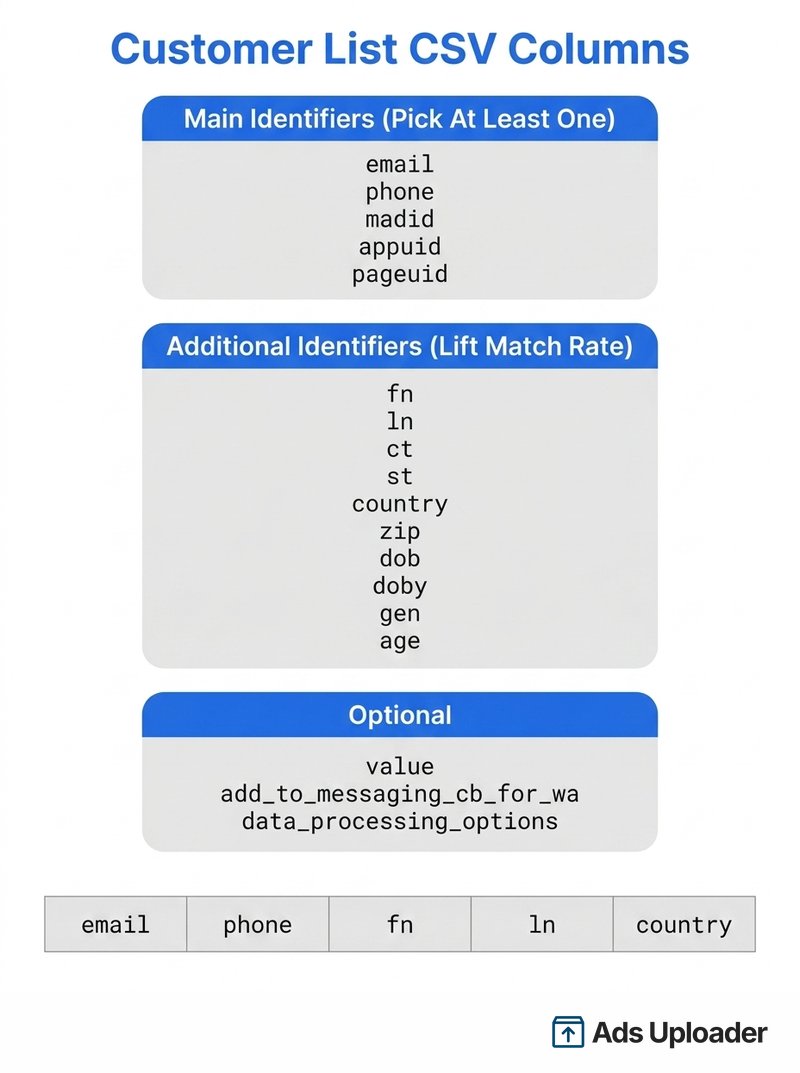
A minimal working template looks like this:
email,phone,fn,ln,country
emily@example.com,+14155552671,Emily,Stone,US
john@example.com,+447911123456,John,Doe,GB
helen@example.com,+12025550143,Helen,Park,US
Two rules trip people up most often. First, put each identifier in its own column. Do not use one column for a full name; split it into fn and ln. Second, always include the country code on phone numbers and an ISO country code in the country column, even when every customer is in the same country, because Meta matches on a global scale. Meta also hosts a downloadable example customer list file you can use as a starting point.
How to Prepare and Export Your List
Your data almost always starts somewhere else: an ecommerce platform, a spreadsheet, or a CRM. The job is to export it and reshape it to match the headers above.
- Export the raw list. Pull the contacts you want to target into a CSV.
- Map fields to Meta's headers. Rename your columns to
email,phone,fn, and so on. Split combined fields, such as a single "Full Name" column, intofnandln. - Clean the data. Trim leading and trailing spaces, lowercase email addresses, and remove currency symbols from any
valuecolumn so it holds numbers only. - Add the country column. Give every row an ISO two-letter
countrycode, and make sure phone numbers carry their country code. - Strip prohibited information. Never upload sensitive data. Meta prohibits identifiers such as government IDs, financial account details, health information, and any data about children under 13. Review Meta's formatting guidelines if you are unsure whether a field is allowed.
If your list lives in a CRM such as HubSpot, Mailchimp, or Salesforce, you can export to CSV and follow the same mapping, or sync it automatically. The mechanics of connecting a CRM to Meta are covered in our guide to Facebook lead ads CRM integration, so this article stays focused on the file itself.
Launch More. Click Less.
Upload hundreds of creatives at once, auto-match thumbnails to videos, and export directly to Meta Ads Manager.
Try Ads Uploader FreeNo credit card required • 7-day free trial
How Hashing and SHA-256 Normalization Work
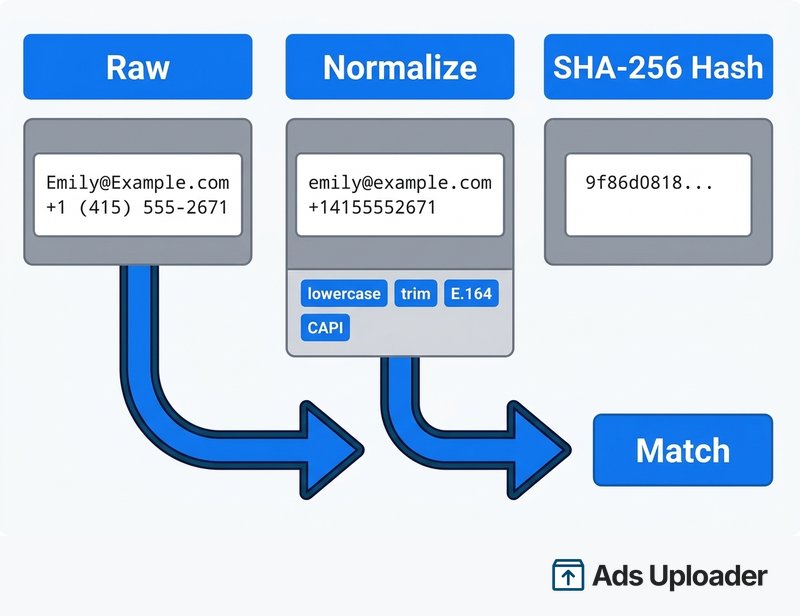
Customer data is sensitive, so Meta never matches raw emails or phone numbers. It matches hashes: scrambled, one-way fingerprints of each identifier produced with the SHA-256 algorithm. Two identical inputs always produce the same hash, which is what lets Meta compare your list to its users without ever reading the underlying values.
There are two paths, and which one applies decides whether you ever touch hashing yourself.
- Direct upload in Ads Manager. When you upload a file or paste values directly, Meta hashes the identifiers in your browser with SHA-256 before anything is sent. The raw data never leaves your machine in readable form, and you do nothing extra.
- Marketing API or partner upload. If you push the list through the API or a connected platform, you normalize and hash each identifier yourself before sending it.
When you do hash the data yourself, normalization comes first, because matching depends on consistent inputs:
- Convert text to lowercase.
- Trim leading and trailing whitespace.
- Strip punctuation where Meta expects it removed.
- Format phone numbers as digits only with the country code included: remove spaces, dashes, parentheses, and the plus sign, and strip any leading zero, for example
14155552671.
Then hash each normalized value with plain SHA-256 and no salt; a salted hash will never match Meta's records.
For the vast majority of advertisers doing a manual upload, this is reassuring news: you prepare a clean CSV and Meta handles the hashing.
How to Upload Your List and Create the Audience
With a formatted file ready, the create flow in the Ads Uploader browser app or directly in Ads Manager takes a few minutes.
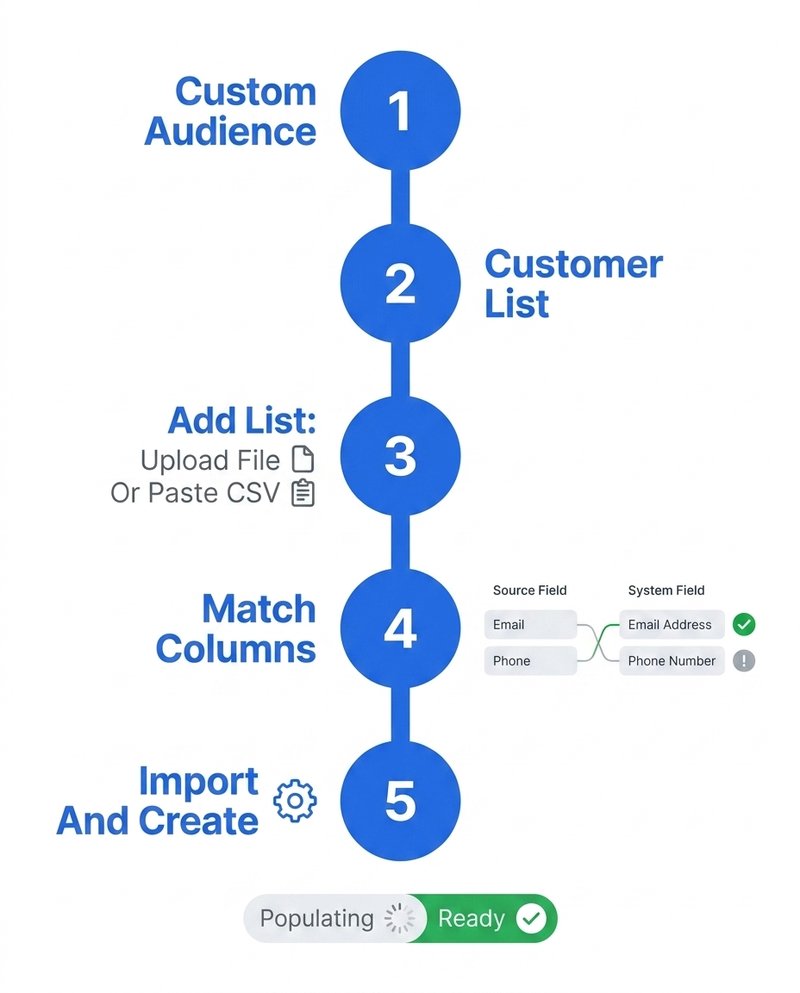
- Open Audiences in Ads Manager.
- Select Create audience, then Custom audience.
- Choose Customer list, then Next.
- Prepare list: confirm your file follows the formatting spec, then continue.
- Add list: choose Upload a file or Paste comma-separated values. Tell Meta whether your file includes a
valuecolumn, then set an audience name, optional label, and description, and accept the custom audience terms. - Match columns: Meta maps each column to an identifier. A green check means a column is mapped and ready to hash. An exclamation point means a column needs attention or was left out; fix these before continuing to protect your match rate.
- Select Upload and create.
Your audience first shows as Populating while Meta processes and matches it, then switches to Ready. Watch for an Outdated status later on: it means the list has not been refreshed in over 30 days, which can dampen delivery. Re-upload a fresh version using Update list to keep it current.
Understanding and Improving Your Match Rate
Match rate is the share of your uploaded records that Meta successfully ties to a Facebook or Instagram account. It is the number that decides how much of your list actually becomes targetable, and it varies a lot by list type.
- Well-formatted consumer lists commonly match in the 30 to 60 percent range, because consumers tend to use personal email addresses that are linked to their accounts, and clean files with several identifiers can push past 60 percent.
- B2B email lists usually run lower, around 20 to 40 percent, since work emails are less likely to be attached to a personal profile.
A handful of levers reliably move the rate upward:
- Include more identifiers. A list with email, phone, name, and location gives Meta more ways to find each person than email alone.
- Format correctly. Country codes on phone numbers, ISO codes in the country column, and lowercase emails all help.
- Keep it fresh. Recent data matches better than a list that has aged for a year.
- Upload a larger, cleaner file. More valid rows means more matched people, even at the same percentage.
Once your audience is matched and Ready, it becomes the source for value-based and standard lookalikes, which extend your reach to people who resemble your best customers. When you build those, remember to suppress the people already on your list so you are not paying to reach existing customers twice. Our guide to custom audience exclusions covers how to handle overlap and suppression cleanly.
Save Hours on Creative Testing
Stop uploading ads one by one. Bulk process unlimited creatives with automatic media matching and direct API publishing.
Try Ads Uploader FreeNo credit card required • 7-day free trial
Doing This at Scale: Repeatable CSV Uploads
One list is a five-minute job. The trouble starts when this becomes a weekly routine across many audiences and several ad accounts, which is the reality for agencies and high-volume teams. You are re-exporting, re-mapping columns, re-checking country codes, and clicking through the same create flow over and over, and every manual pass is a chance to ship a malformed file.
The fix is to standardize: lock in one column template, validate the headers before every upload, and batch the work instead of doing it one audience at a time. That same standardize-and-batch discipline is exactly what separates teams that launch campaigns quickly from teams that get stuck in spreadsheet wrangling. If list and ad workflows at volume are your bottleneck, the broader landscape of options is worth a look in our roundup of the best bulk ad launch tools for Meta ads.
Frequently Asked Questions
What format does a Facebook custom audience CSV need? A CSV or TXT file with a header row and one customer per row. The first row holds Meta's recognized column codes, and each identifier sits in its own column. The file needs at least 100 unique customers after duplicates are removed.
What columns and headers go in the customer list CSV? At least one main identifier (email, phone, madid, appuid, or pageuid), plus optional identifiers that lift match rate such as fn, ln, ct, st, country, zip, dob, doby, gen, and age. Optional columns include value, the WhatsApp messaging field, and the Limited Data Use fields.
What is the minimum customer list size? You need at least 100 unique customers in the file after deduplication, or Meta will not create the audience. The old minimum of 20 is outdated guidance, and larger, cleaner lists give you more usable reach.
Do I need to hash my customer list myself? Not for a standard Ads Manager upload. Meta hashes the identifiers with SHA-256 in your browser before sending. You only hash the data yourself when uploading through the Marketing API or a partner integration, after normalizing it.
What is a good custom audience match rate? Well-formatted lists commonly match in the 30 to 60 percent range, and clean files can push past 60 percent, while B2B lists run lower at roughly 20 to 40 percent. More identifiers and clean formatting push the rate higher.
Why does my custom audience say Outdated? The list has not been refreshed in over 30 days, which can affect delivery. Re-upload an updated version with the Update list option.
Can I paste a list instead of uploading a CSV file? Yes. The Add list step includes a Paste comma-separated values option. It is convenient for small lists, but a formatted CSV is faster and safer for anything sizable.
Bringing It Together
A customer list custom audience is only as strong as the file behind it. Get the columns right, give each identifier its own column, add country codes and lowercase your emails, and include more than one identifier so Meta has more to match against. Upload it in Ads Manager, let it hash and populate, and refresh it before it drifts into Outdated. Then turn that matched group into lookalikes and suppression lists.
Do it once and it is a quick task. Do it every week across multiple accounts and the real win is standardizing the template and batching the uploads, so a clean list always turns into a working audience instead of a formatting headache.
